How to Set Up Macros and Lua Scripts in Logitech G HUB
Set up standard mouse macros, assign them to Logitech buttons, and use Lua scripts for more advanced G HUB configurations.
Logitech G HUB Macros vs Lua Scripts
Logitech G HUB supports two different macro setup methods. The first method is the standard macro editor, where you create a fixed sequence of actions such as clicks, key presses, delays, holds, and releases. This is similar to how macros work in Razer Synapse and Bloody Esports.
The second method is Lua scripting. Lua scripts are more advanced because they can use custom logic, timing, conditions, loops, and randomized delays.
This is where Logitech G HUB has a real advantage. Lua scripts can be written with variable timing, so repeated actions do not have to use the exact same delay every time. This creates more human-like behavior than a fixed macro sequence.
How to Create and Assign a Macro in Logitech G HUB
This section shows the basic Logitech G HUB macro workflow.
-
Open Logitech G HUB and select your device.
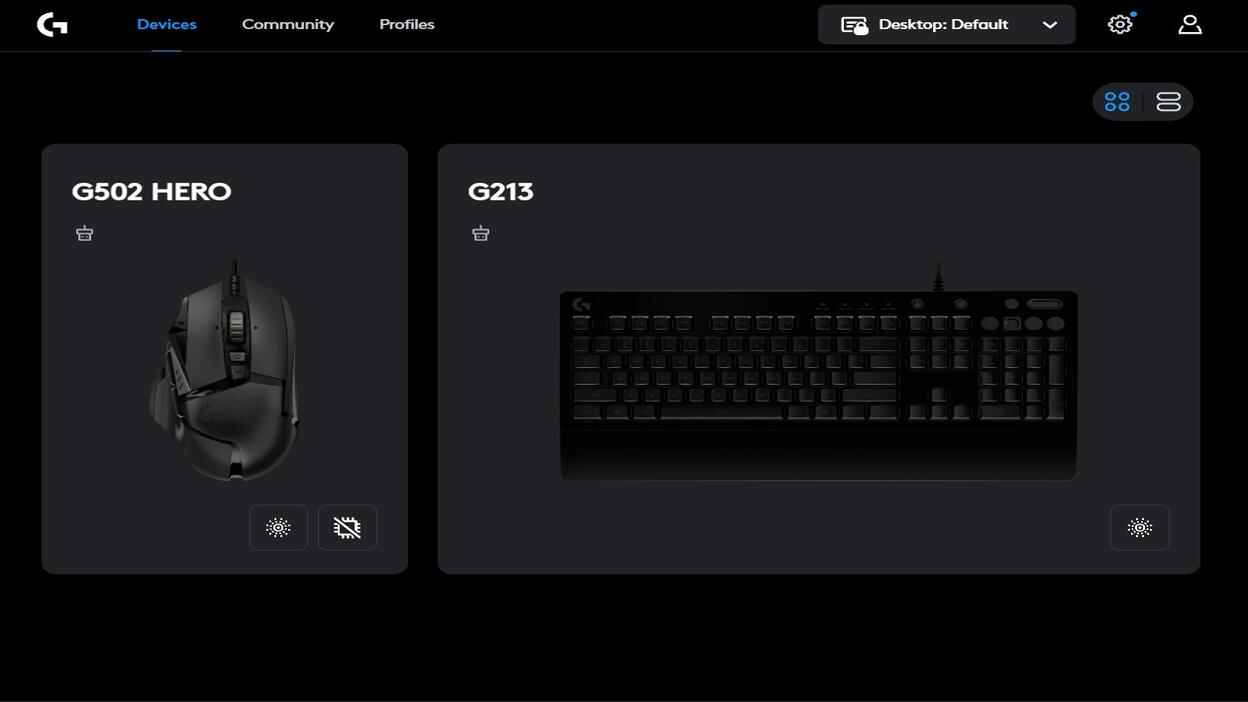
Start from the Logitech G HUB Devices tab and select the mouse you want to configure -
In the left-side menu, open Assignments, then select the Macros section.
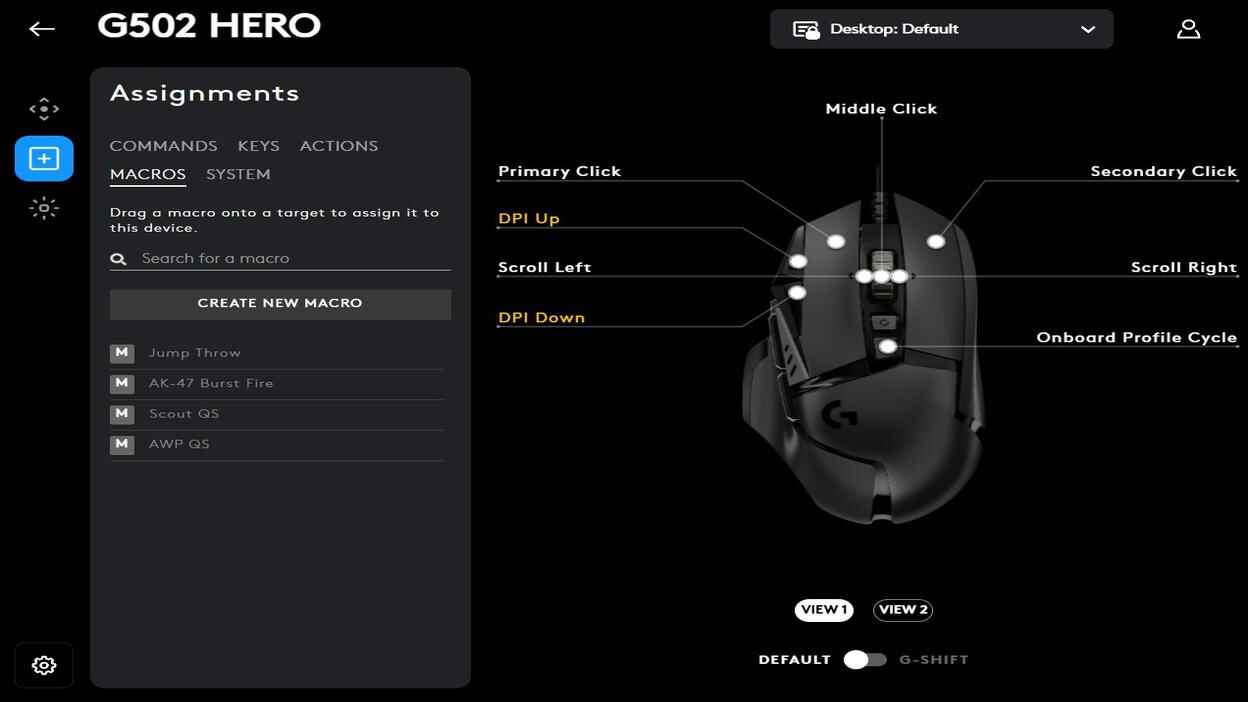
Open the G502 HERO Assignments panel, select Macros, and click Create New Macro -
Click Create New Macro and give it a clear name, such as Run, then choose how the macro should work, for example Toggle.
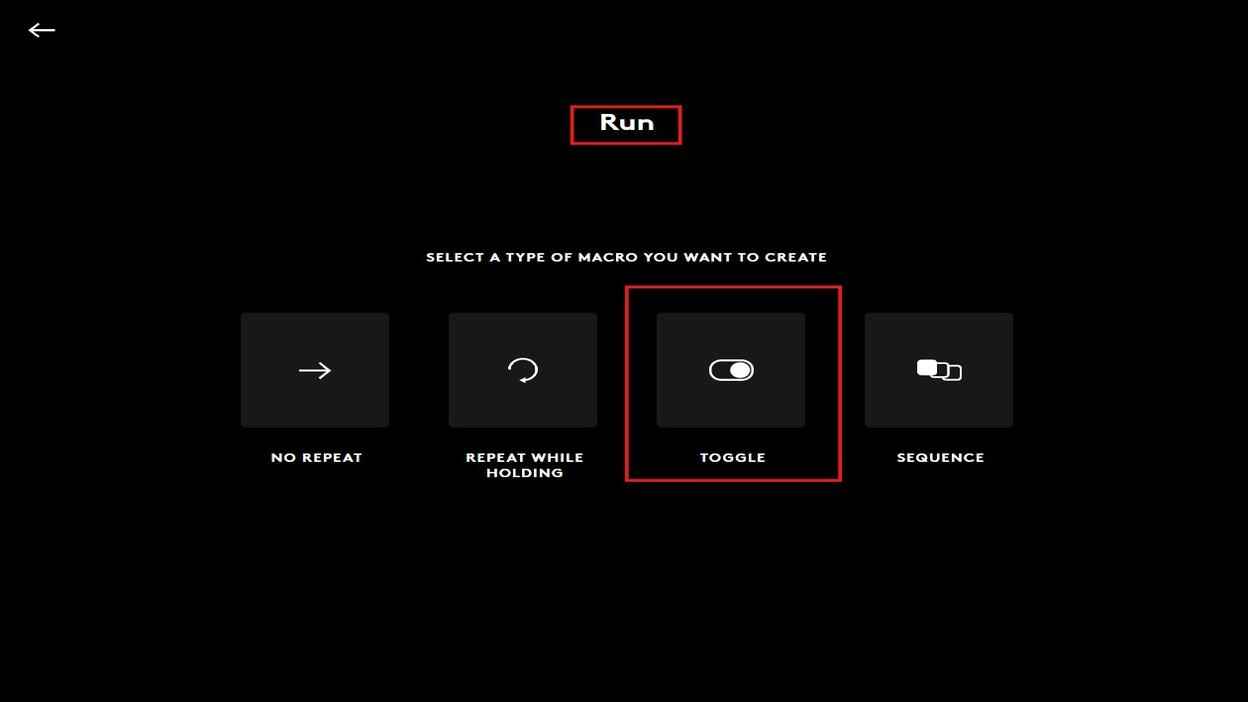
Choose the macro playback type. In this example, the Run macro uses Toggle mode - No Repeat - the macro runs once after you press the assigned button.
- Repeat While Holding - the macro keeps running while the assigned button is held.
- Toggle - one press starts the macro, and the next press stops it.
- Sequence - separate macro stages can run on press, while holding, and on release.
-
Click Start Now, then choose an option such as Record Keystroke.
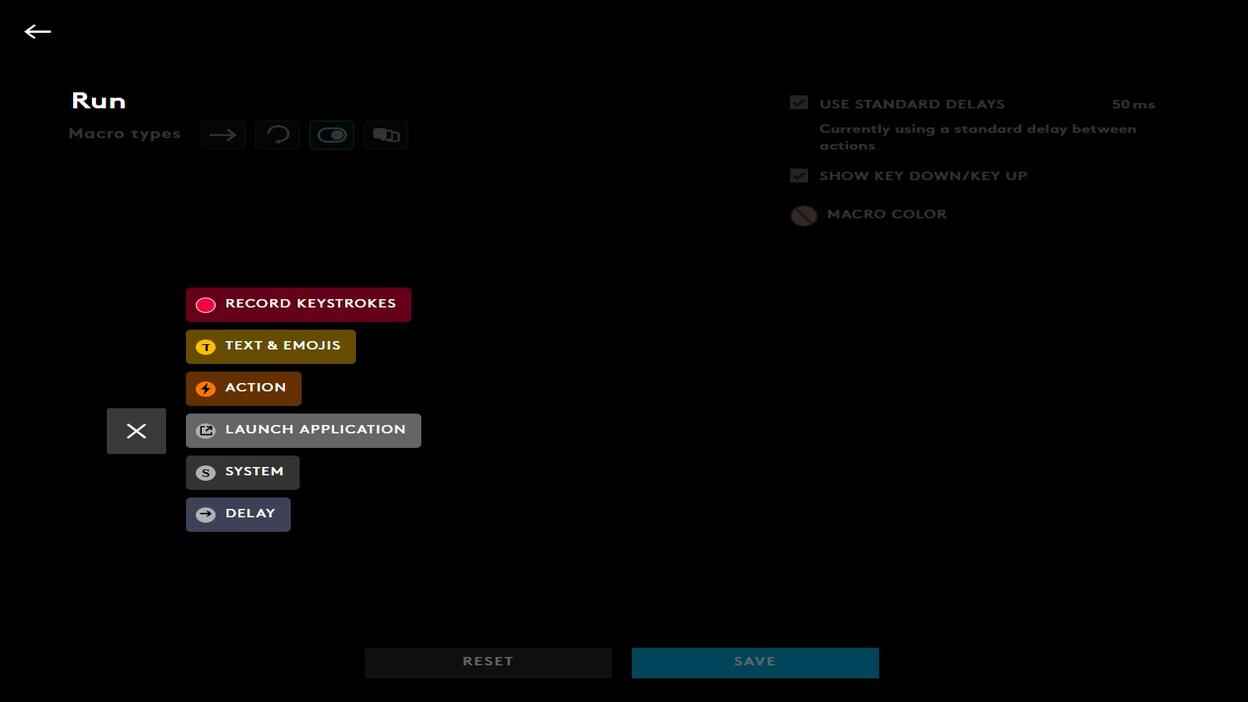
Use the macro editor to add keystrokes, actions, system commands, application launches, or delays - Record Keystroke - records keyboard inputs, mouse clicks, and scroll actions.
- Text & Emojis - creates a text or emoji input that can be inserted with one button press.
- Action - assigns a supported action for a compatible game or application.
- Launch Application - starts a selected program or game.
- System - assigns one or more system-level actions.
- Delay - adds custom timing between macro actions.
-
Select Record Keystroke, press and release the W key, then stop recording. If needed, uncheck Use Standard Delays to set the delay manually.
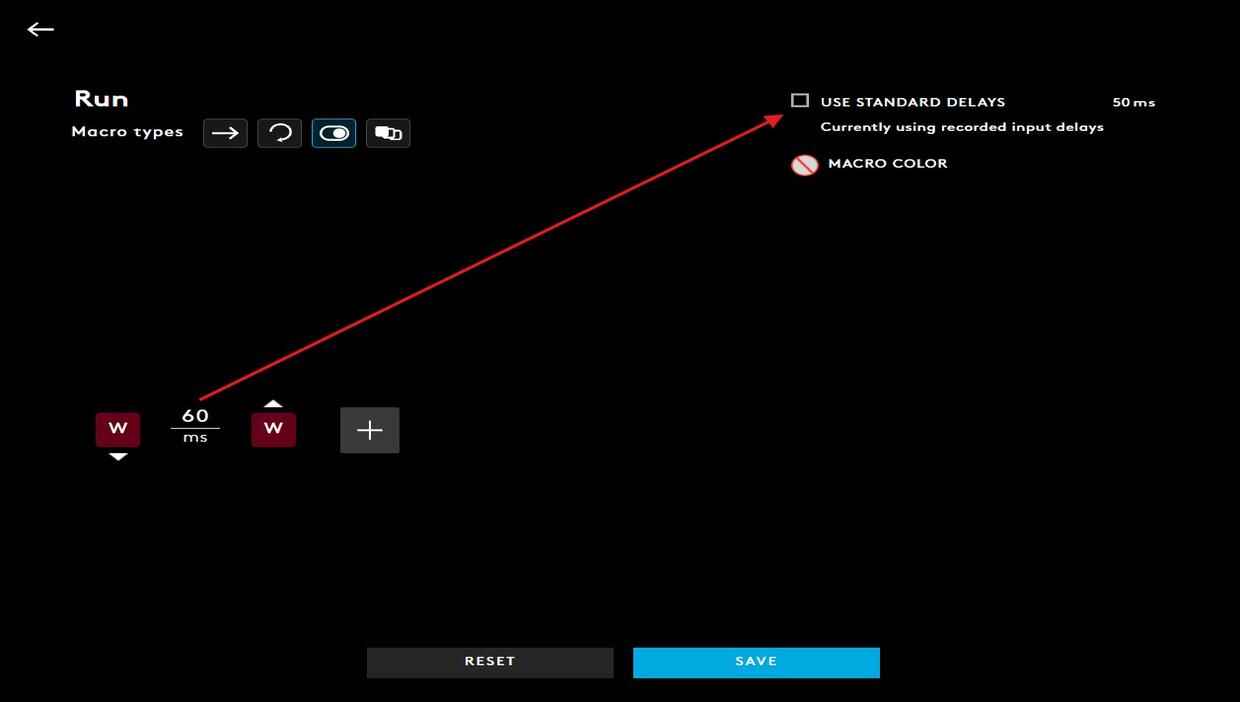
Disable standard delays to keep recorded input timing, such as the 60 ms delay shown between key actions Example sequence:
W press -> 60 ms -> W releaseClick the Save button after the sequence is complete.
-
Drag the macro from the Macros list and drop it onto the mouse button you want to use, such as Middle Click.
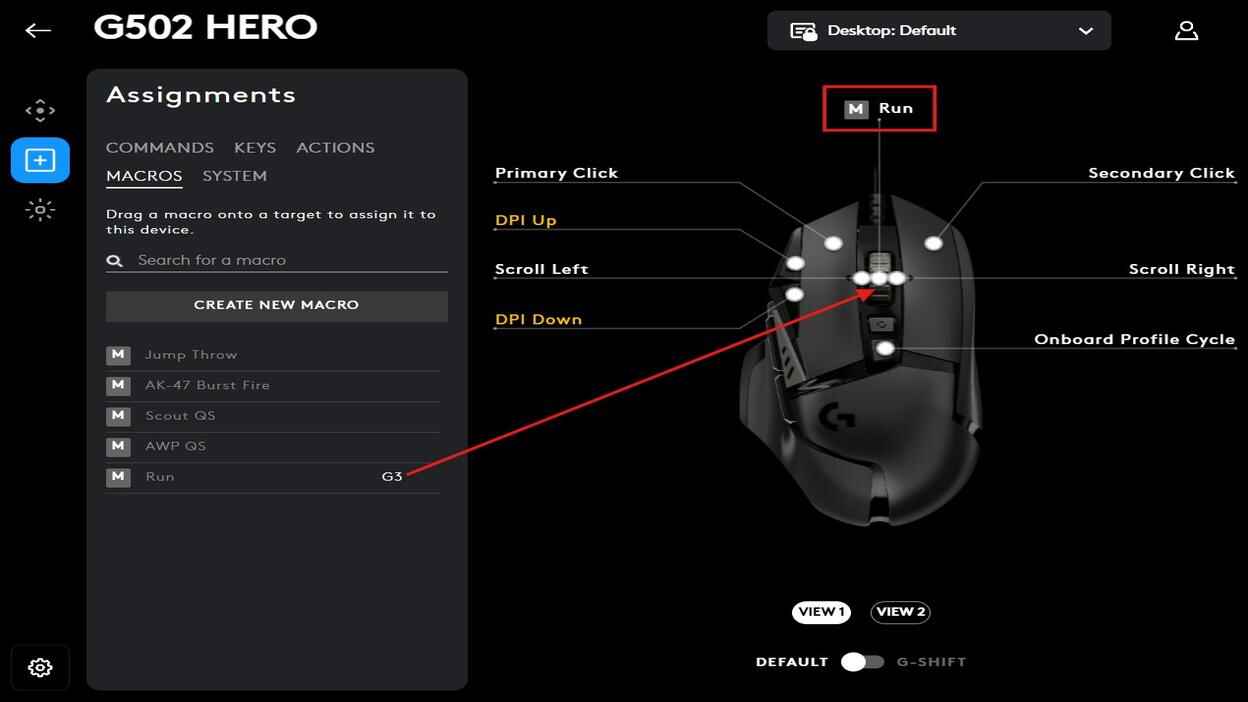
Drag the created macro onto a mouse button to assign it. Here, the Run macro is assigned to the G3 button - Make sure the correct G HUB profile is active. Macro assignments are profile-based, so using the wrong profile can make it look like the macro is missing.
How to Add a Lua Script in Logitech G HUB
This section shows how to open the G HUB scripting editor, create a new Lua script, add your code, and run it inside the selected Logitech profile.
- Open Logitech G HUB and go to the Profiles tab.
-
In the active profile, look near the lower-left area of the profile details panel and click the rotating gear icon labeled Scripting.
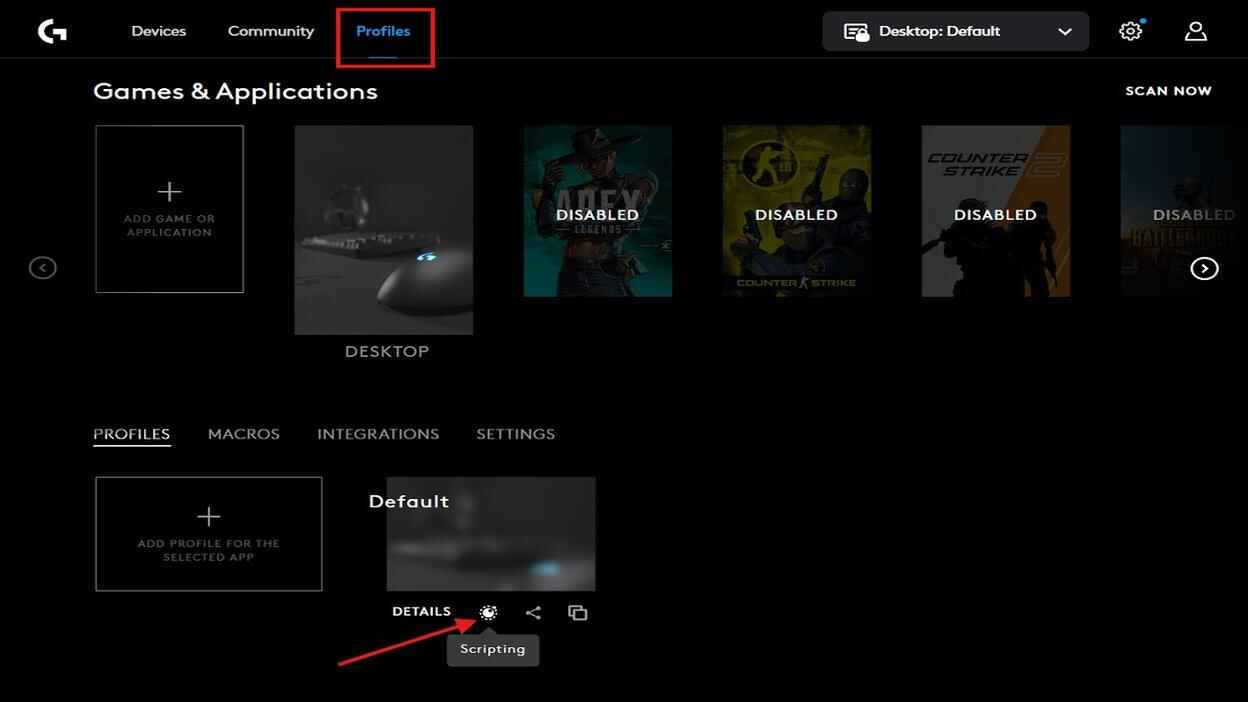
Open the Profiles tab, select the active profile, and click the Scripting button near Details -
In the Scripting window, click Create a new Lua script at the bottom, or select it from the active Lua script list at the top.
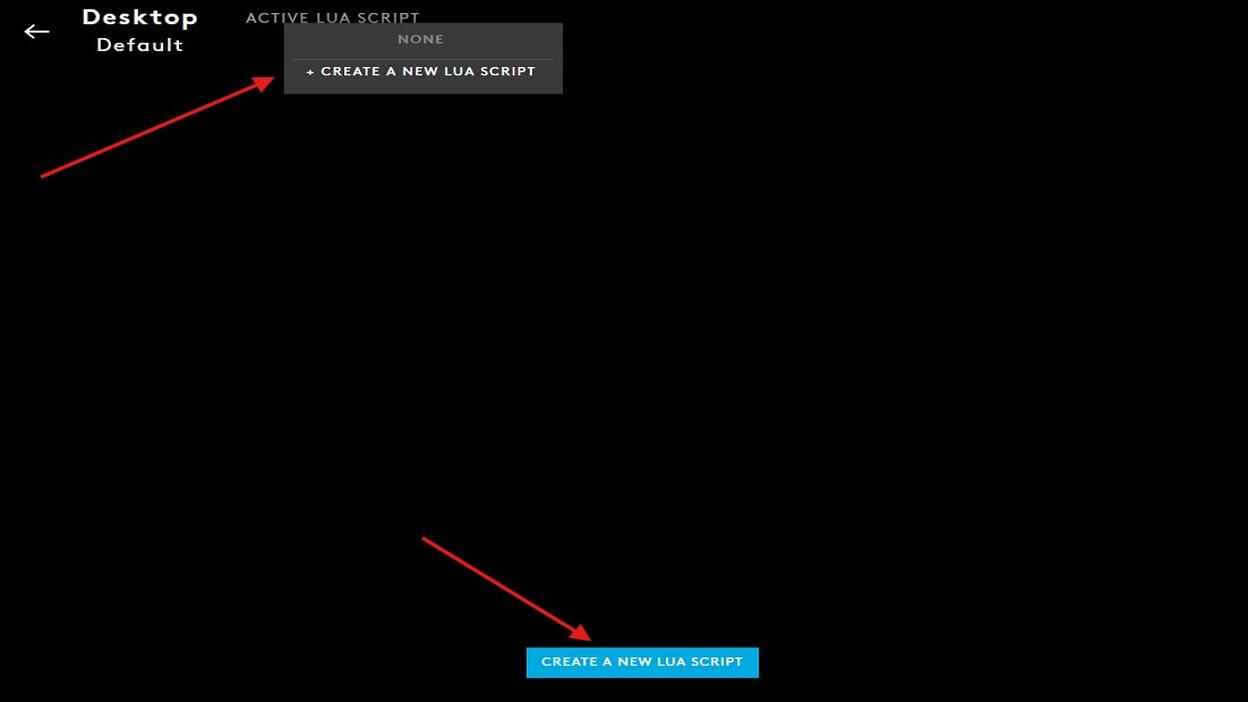
Click Create a New Lua Script to add a fresh Lua script to the selected profile -
Paste your Lua code into the editor or load a
.luafile. Example:data = dofile[[D:\macro\file.lua]] -
Open the Script menu, click Save & Run, then close the window. The script should already contain its own control logic, such as enable, disable, toggle, button handling, or timing behavior.
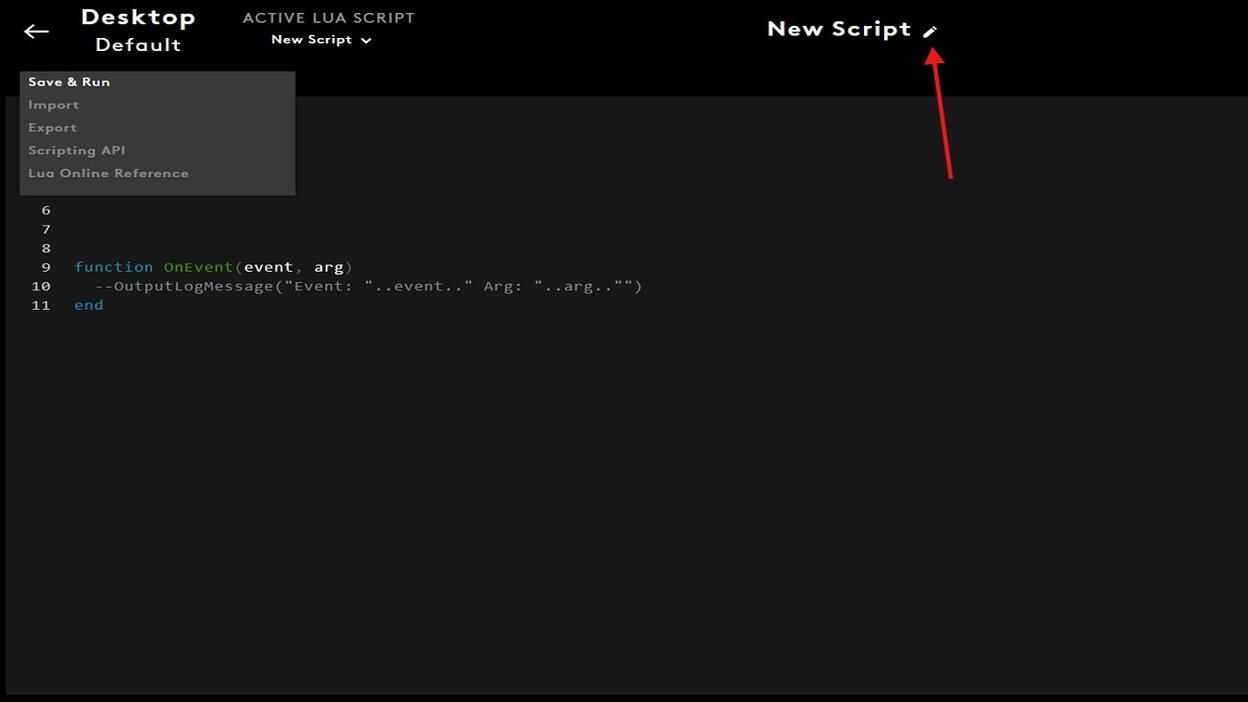
Rename the script if needed, paste your Lua code into the editor, then use Save & Run
Common Logitech G HUB Macro and Lua Script Problems
Make sure the macro is assigned to the correct mouse button and that Logitech G HUB is running.
- The correct G HUB profile is not active.
- The script was added to the wrong profile.
- The app where you test the script is running as administrator, but G HUB is not.
Check the macro type. No Repeat, Repeat While Holding, Toggle, and Sequence work differently.
Edit the delay values. Even small timing changes can affect how the macro feels.
Logitech G HUB Macros and Lua Scripts FAQ
Quick answers about Logitech G HUB macros, Lua scripts, profiles, and editing.
What is the difference between a G HUB macro and a Lua script?
A standard G HUB macro is a fixed sequence of recorded actions, such as key presses, mouse clicks, delays, and releases. A Lua script can use logic, conditions, loops, custom timing, and variable delays.
Do I need to assign a Lua script to a mouse button?
Not always. A Lua script can listen for mouse button events directly if that logic is written inside the script. Standard macros usually need to be assigned to a specific button in G HUB.
Why does my macro or Lua script not work?
The most common reason is the wrong active profile. G HUB macros and scripts are profile-based, so make sure the correct game or desktop profile is active. Also check that the script is saved and running.
Can I edit G HUB macros and Lua scripts after creating them?
Yes. Standard macros can be edited inside the Macros section. Lua scripts can be edited inside the G HUB scripting editor, then saved and run again.